Your field guide
You're running Mentor's product queue. This is the whole job, in pictures — how to read what testers ask for, decide what gets built, keep everyone posted, and stay inside a budget. No code. Read it once, then keep it open on your first pass through the console.
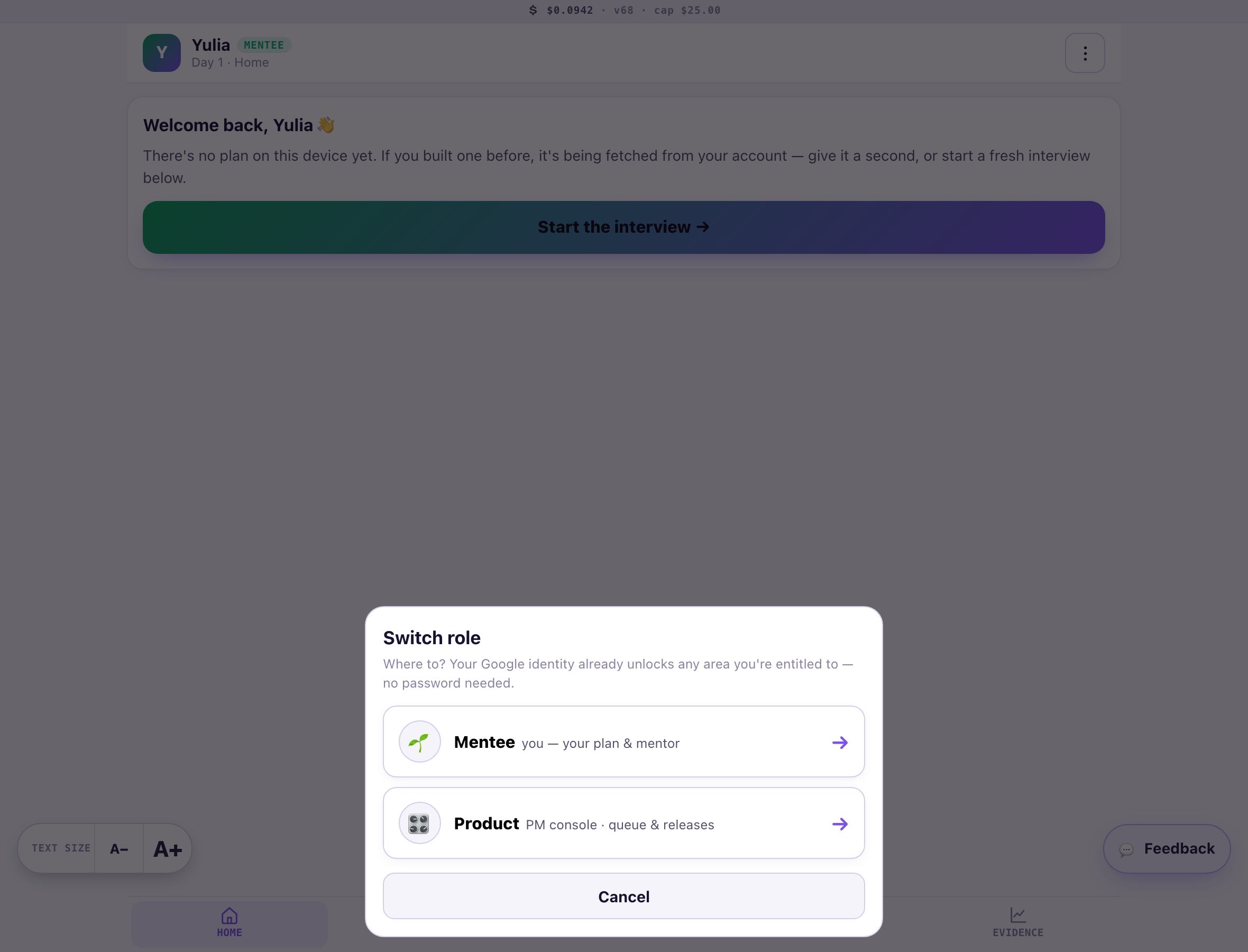
1Find your console
Tapping ⋮ → Switch role shows you two doors. Mentee is you as a normal user (your own goal & plan). Product is your operator console. You won't see Mentor or Admin — those aren't yours, and that's on purpose.
2Read the room
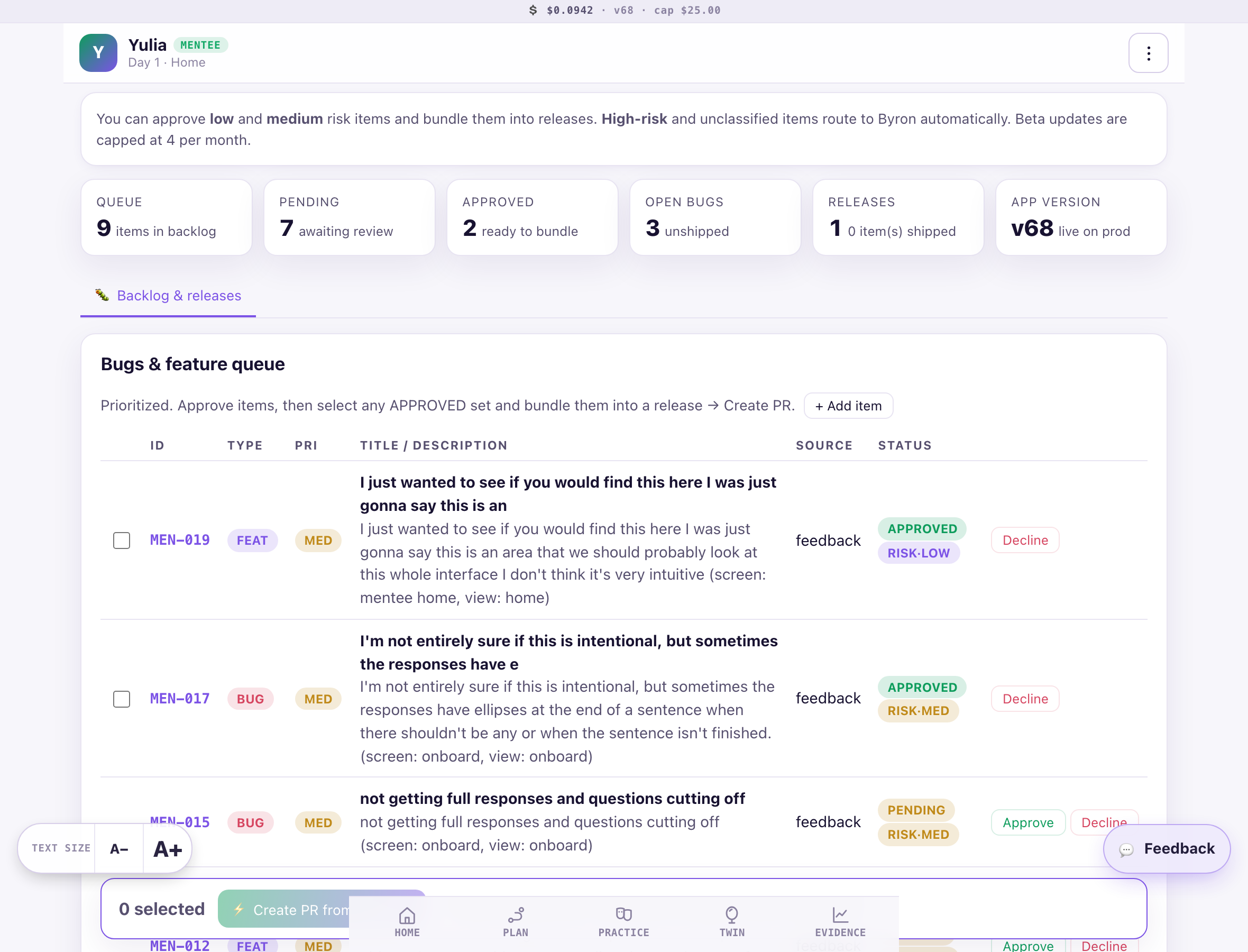
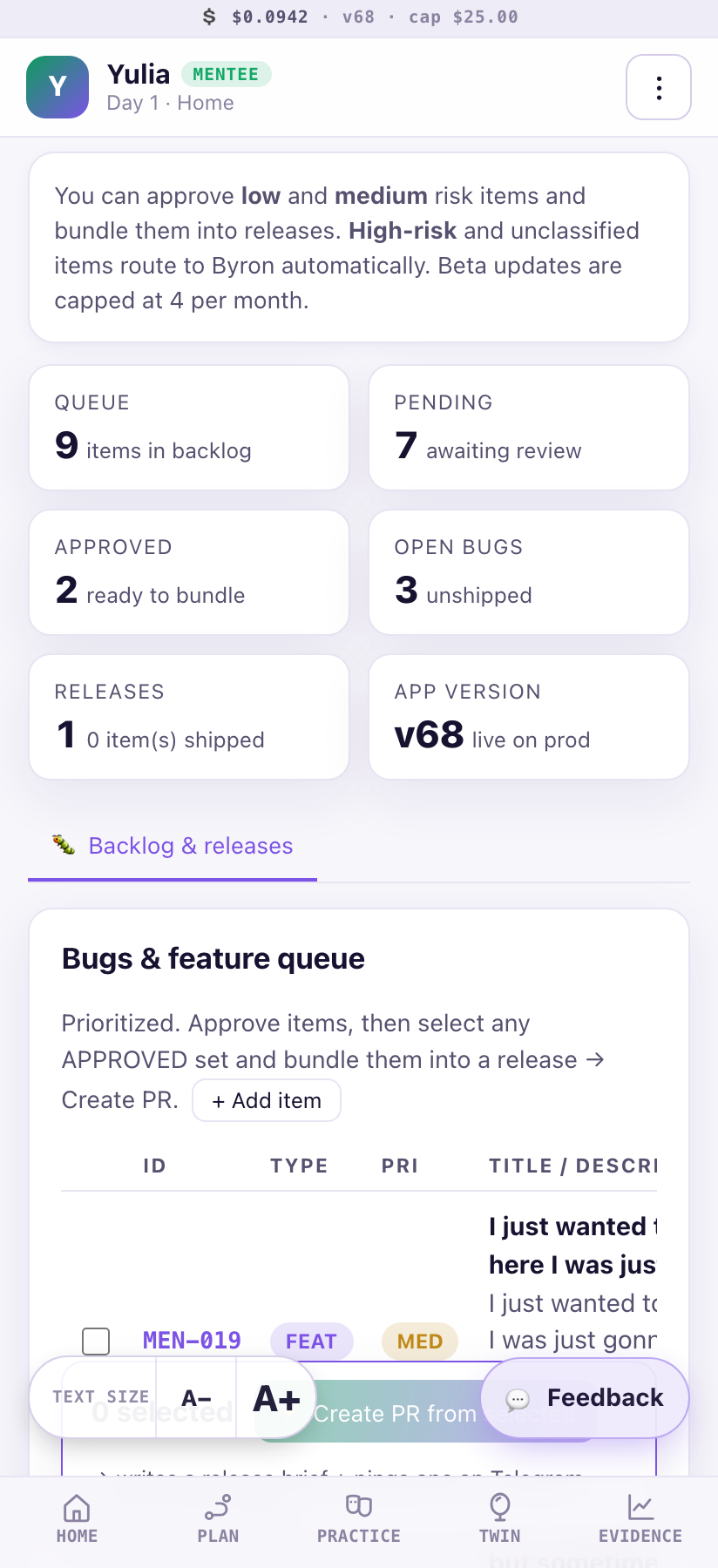
This is your home base. A quick tour of what you're looking at:
- The budget strip (very top): your live spend and your cap. When it's used up, the app's AI pauses until Byron tops it up — that's the guardrail, not a bug.
- The banner: the one rule to remember — you handle low & medium risk; high & unclassified go to Byron automatically.
- The tiles: queue size, what's pending, what's approved and ready, open bugs, releases, and the live app version.
- The queue: every piece of tester feedback, newest triaged first, each tagged with a risk pill.
3The risk pills — your traffic light
An assistant reads every incoming item and tags it. You act on green and yellow directly; red and grey go to the AI council (next section) — you still just tap Approve.
Try it: tap Approve on a red HIGH item. Instead of blocking, it goes ⚖ IN COUNCIL — see the next section.
3½The AI council — how you stay fast on risky calls
You should never wait for a person to bless a risky idea. When you approve a red HIGH or grey item, it goes to a council of four independent AI judges, each with a different lens: will it break something · could it harm a user's privacy · is the request clear · how hard is it to undo. They vote in minutes.
- 3 or 4 approve → cleared, and it drops into your approved list, ready to bundle.
- Most reject → blocked, with the reasons shown (hover the ⚖ note).
- A tie → a senior AI chair breaks it, leaning safe.
You'll see ⚖ IN COUNCIL while it decides, then ⚖ council cleared / blocked with the vote tally. Your job doesn't change — tap Approve on what you believe in; the council handles the risk.
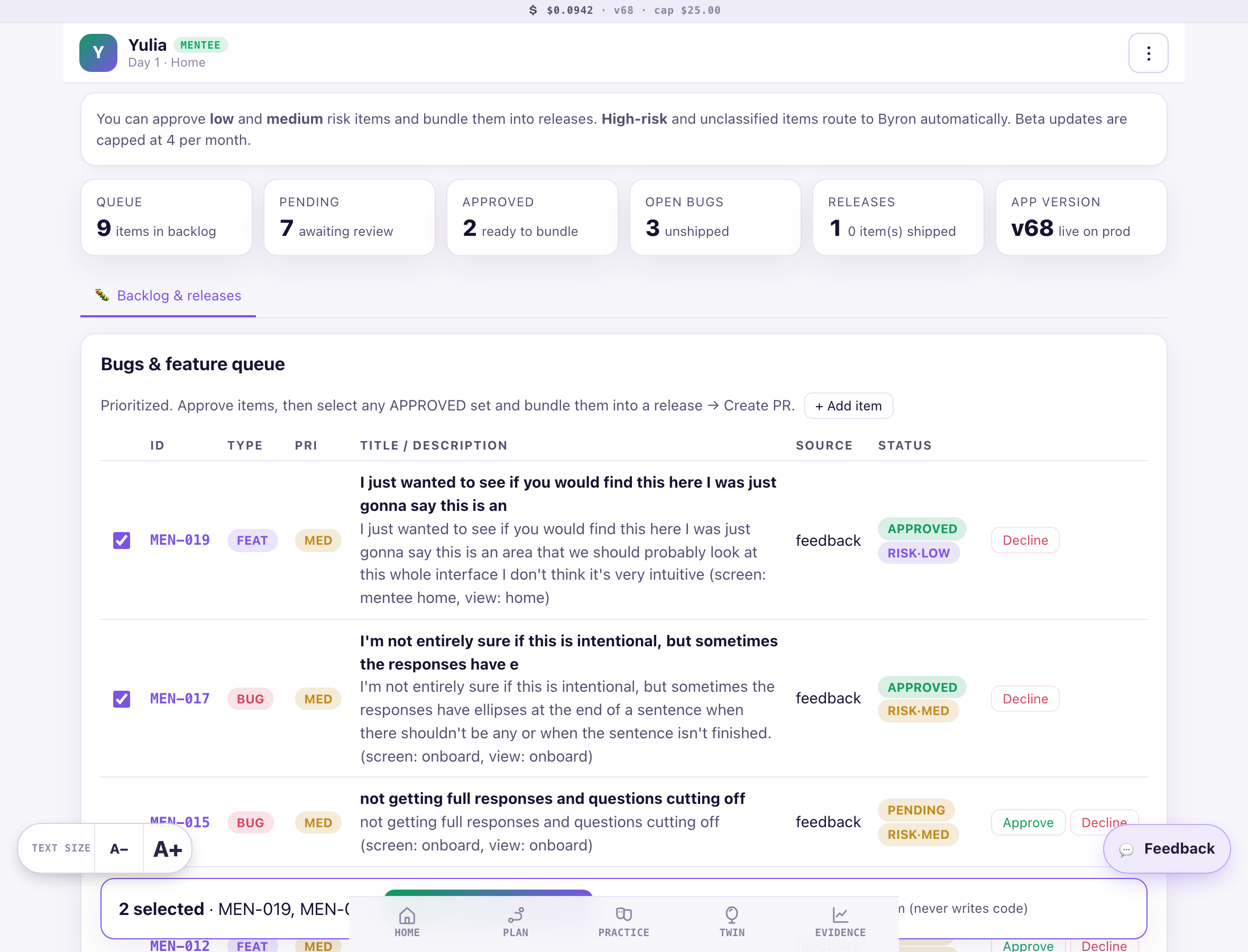
4Approve → bundle → Create PR
Approving an item says "yes, this is worth doing." Building happens by bundling approved items into a release — that's what "Create PR" means (PR = the work order that gets built).
- Tap Approve on the items you want.
- Tick the checkbox on two or more approved items.
- Hit ⚡ Create PR from selected. That writes the build brief and notifies the build side. You never touch code.
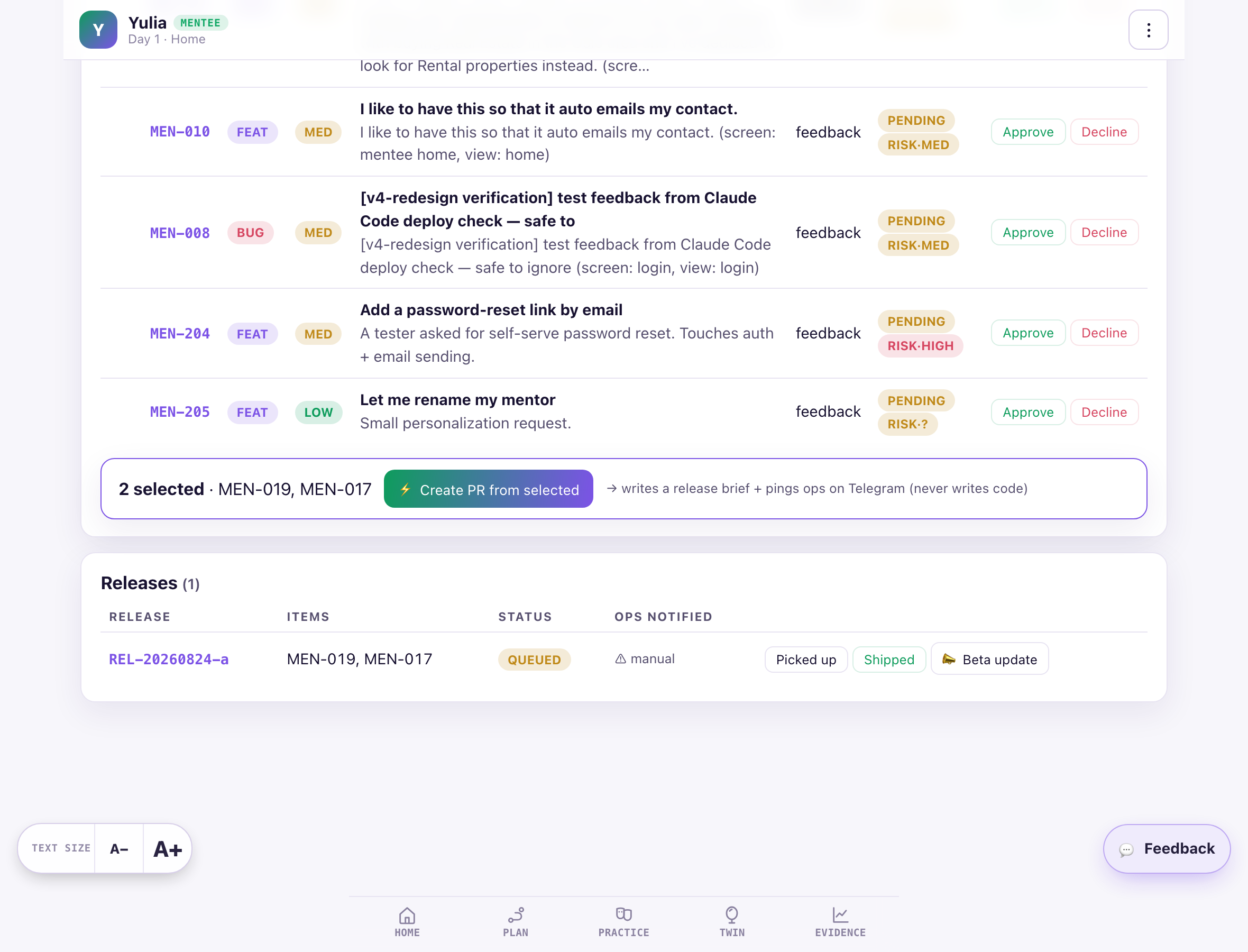
5Tell the testers — Beta update
When a release ships, keep the testers in the loop. In the Releases list, each release has a 📣 Beta update button. Write two or three sentences — what changed, what to try.
- It sends a test copy to Byron first, on purpose, so nothing goes out unseen.
- Real sends reach every active tester and are capped at 4 a month.
6Your budget
Something bigger or more expensive you want to build? That's exactly when to ask Byron rather than push it through — anything costly is his call. More on how building works below.
7How a feature actually gets built
You don't write code, and neither does Byron by hand. Here's the chain your "Create PR" kicks off:
Small, cheap work gets built by a low-cost assistant; anything expensive or risky pauses for Byron's OK. You stay focused on what to build and why — the machinery handles the how.
8Now the real ask — what should we build?
Reading testers is half of it. The other half is your judgement. As you go, keep a running note on:
- What would you actually use? You're a designer and a user — the features you'd reach for are probably the ones others want too.
- What keeps coming up? If three testers trip on the same thing, that's a signal, not noise.
- What would make someone come back tomorrow? Not just fixes — the one thing that makes Mentor feel alive.
- What's confusing on first use? You'll only have fresh eyes once. Write it down now.
Bring those to Byron. The queue is where testers talk; you're the one who decides what it means.
On your phone
Everything works one-handed — this is built to run from a phone.
Anything confusing, wrong, or missing — use the Feedback button inside the app. It lands in the very queue you now manage, so you'll watch your own note arrive. Then reply to Byron's email with what worked, what didn't, and the one thing you'd change first.